
How to Send a Webhook from Google Forms (Apps Script)
Google Forms has no built-in webhooks, but a few lines of Apps Script and an on-form-submit trigger will POST every response to your URL. Copy-paste code.
On this page
Google Forms is great at collecting responses but has no native webhooks — there's no field where you paste a URL. The fix is a few lines of Google Apps Script that POST each response to your endpoint. This guide shows the correct, minimal setup, and avoids a step you'll see in other tutorials that you don't actually need. (New to webhooks? See what is a webhook.)
The approach
Every Google Form can have a bound Apps Script. We'll:
- Add a function that turns a submitted response into JSON and POSTs it with
UrlFetchApp. - Wire it to an installable "On form submit" trigger so it runs on every submission.
That's it — no "Deploy as web app" step. (Deploying as a web app is for receiving HTTP requests, not for sending one on submit; adding it here just exposes an endpoint you don't need.)
Step 1 — open the script editor
In the form editor, click the ⋮ (three dots) menu (top-right, near Send) → Apps Script. This opens a script bound to your form.
Step 2 — add the code
Replace the default contents with this, and set ENDPOINT_URL to your webhook URL:
const ENDPOINT_URL = 'https://your-endpoint.example.com/webhook';

function onFormSubmit(e) {
  const payload = {};
  // e.response is the FormResponse for THIS submission
  e.response.getItemResponses().forEach(function (item) {
    payload[item.getItem().getTitle()] = item.getResponse();
  });
  payload.submittedAt = e.response.getTimestamp();

  UrlFetchApp.fetch(ENDPOINT_URL, {
    method: 'post',
    contentType: 'application/json',
    payload: JSON.stringify(payload),
    muteHttpExceptions: true,
  });
}
Using the event object e.response is more reliable than fetching "the latest response" from the form — it's exactly the submission that fired the trigger, with no race conditions.
Step 3 — add an installable trigger
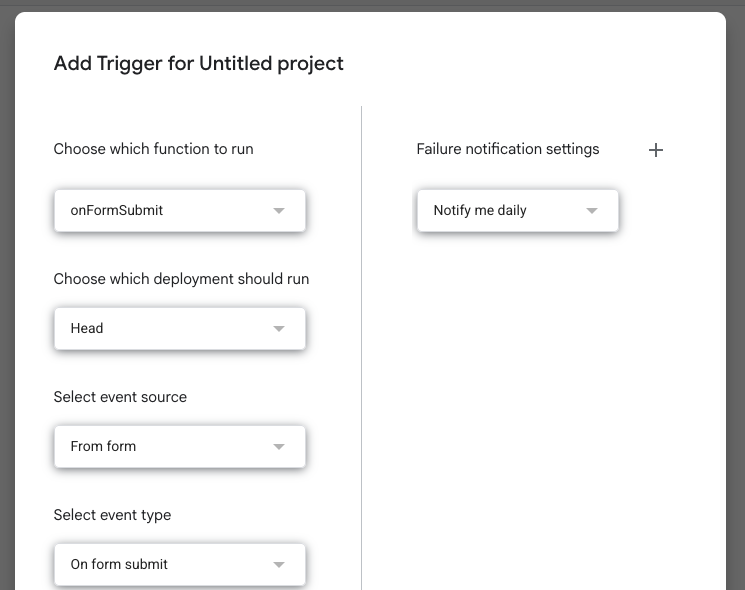
This is the step that trips people up. Because UrlFetchApp needs authorization, a simple trigger won't work — you need an installable one:
- In the Apps Script editor, click the Triggers icon (the alarm clock) in the left sidebar.
- Add Trigger.
- Choose function
onFormSubmit, event source From form, event type On form submit. - Save, then authorize the script when Google prompts (you'll approve the permissions once).
Step 4 — test it
First, capture what the form sends by pointing ENDPOINT_URL at a free Webhook Bin — submit a test response and you'll see the exact JSON arrive. Then switch ENDPOINT_URL to your real handler.
Where the webhook goes next
Once your form responses are flowing as webhooks, Webhook Relay can route them anywhere: transform each submission and fan it out to multiple destinations, or deliver to a service on your own machine.
- Webhook to Google Sheets — log every submission to a sheet.
- Webhook to Slack or Discord — get notified on each response.
- Receive it on localhost — drive a local handler with real submissions.
Ready to turn form submissions into webhooks? Grab a free Webhook Bin to see your first one, or start forwarding for free.