
How to Get a Discord Webhook URL
Create a Discord webhook URL step by step: Server Settings, Integrations, pick a channel, copy the URL. Includes the format, a curl example and embeds.
On this page
A Discord webhook URL is the fastest way to post messages into a Discord channel from any app or script — no bot, no gateway connection, just an HTTP request. Here's how to create one and use it. (New to webhooks? See what is a webhook.)
What a Discord webhook URL looks like
https://discord.com/api/webhooks/123456789012345678/aBcDeF_secret-token
It's a numeric webhook ID plus a secret token. Anyone with the full URL can post to the channel, so keep it private.
Create a Discord webhook
You'll need the Manage Webhooks permission on the server (server owners and admins have it):
- Open Server Settings. Click your server name (top-left) → Server Settings.
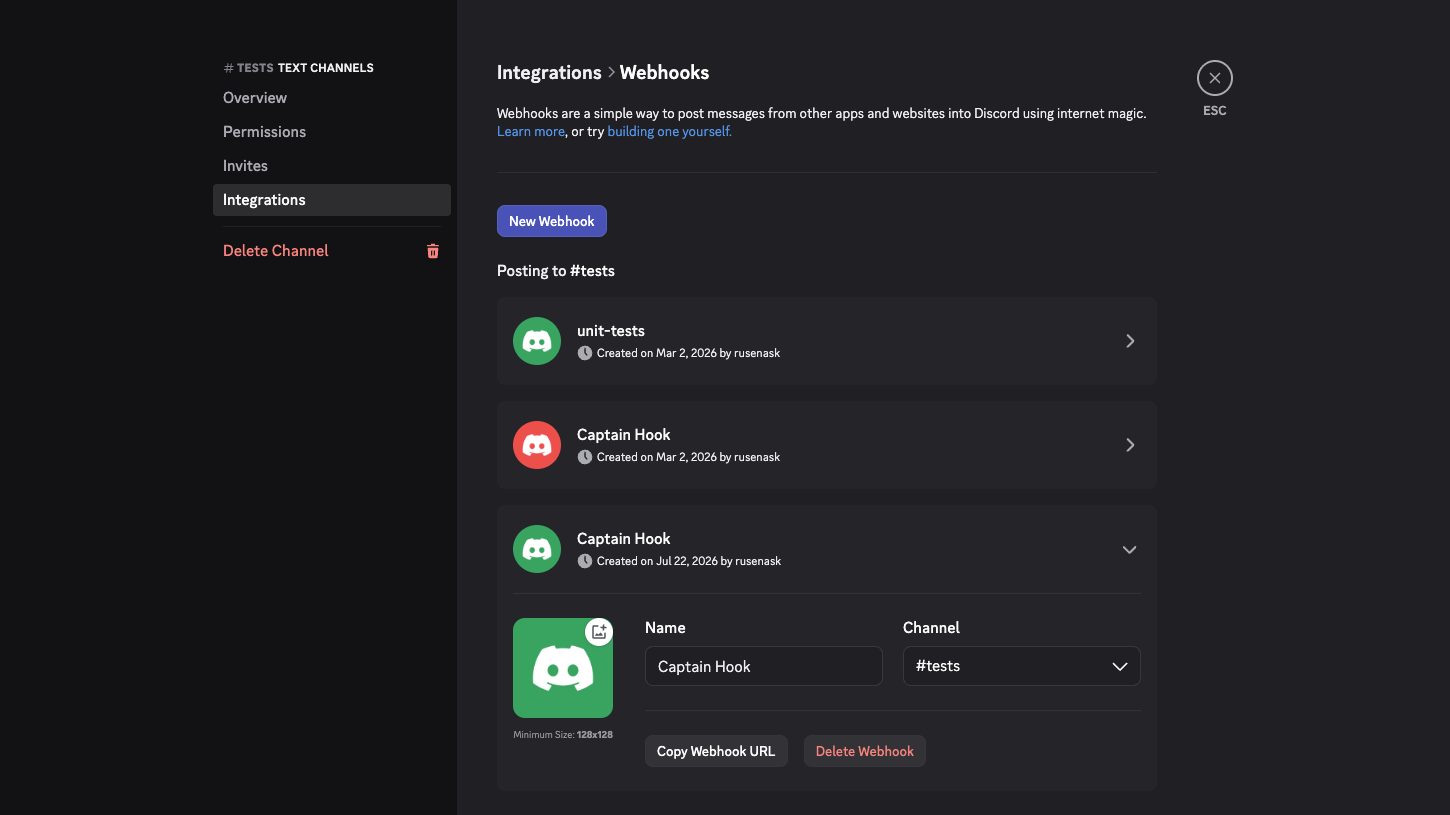
- Go to Integrations. In the sidebar, choose Integrations, then Webhooks → New Webhook (or Create Webhook).
- Configure it. Give the webhook a name, optionally an avatar, and pick the channel it should post to from the dropdown.
- Copy the URL. Click Copy Webhook URL. That's the URL you'll POST to.
You can also create a webhook straight from a channel: Edit Channel → Integrations → Webhooks.
Send a test message
POST JSON with a content field:
curl -H "Content-Type: application/json" \
  -d '{"content":"Hello from a Discord webhook 👋"}' \
  "https://discord.com/api/webhooks/123456789012345678/aBcDeF_secret-token"
For a richer message, send an embed — a titled, colored card:
curl -H "Content-Type: application/json" -d '{
  "embeds": [{
    "title": "Deploy finished",
    "description": "Build #142 shipped to production",
    "color": 3066993
  }]
}' "https://discord.com/api/webhooks/123456789012345678/aBcDeF_secret-token"
You can override the display name and avatar per message with username and avatar_url.
Sending any event to Discord
The webhook URL is the easy half — you still need to POST to it in Discord's format. Webhook Relay bridges that gap: point a provider (a payment, a CI build, a TradingView alert) at Webhook Relay, transform the payload into a Discord message or embed, and forward it — optionally fanning out to Slack or Teams at the same time.
- Send a webhook to Discord — the full forward-and-transform walkthrough.
- TradingView webhooks to Discord — a real automation example.
Security notes
- The URL is a secret — Discord even warns that leaked webhook URLs are a common way servers get spammed.
- To revoke one, open the webhook in Integrations → Webhooks and click Delete Webhook; create a new one if needed.
- A webhook can only post to its channel — it can't read messages or act as a member.
Ready to route real events into Discord? Test a webhook now or start forwarding for free.