
How to Get a Slack Webhook URL (Incoming Webhooks)
Get a Slack incoming webhook URL step by step: create a Slack app, enable Incoming Webhooks, pick a channel, and post with curl. Includes the format.
On this page
A Slack incoming webhook URL lets any app or script post messages into a Slack channel with a simple HTTP request — no Slack SDK required. This guide gets you a URL in a couple of minutes, shows the exact format, and covers how to send messages and a no-app alternative. (New to webhooks in general? See what is a webhook.)
What a Slack webhook URL looks like
An incoming webhook URL has three parts — a workspace ID, an app/webhook ID, and a secret token:
https://hooks.slack.com/services/T00000000/B00000000/XXXXXXXXXXXXXXXXXXXXXXXX
Anyone who has the full URL can post to that channel, so treat it like a password — don't commit it to a public repo.
Get a Slack webhook URL (Incoming Webhooks)
Slack exposes incoming webhooks through a Slack app. It sounds heavier than it is:
- Create an app. Go to api.slack.com/apps → Create New App → From scratch. Give it a name and pick the workspace, then Create App.
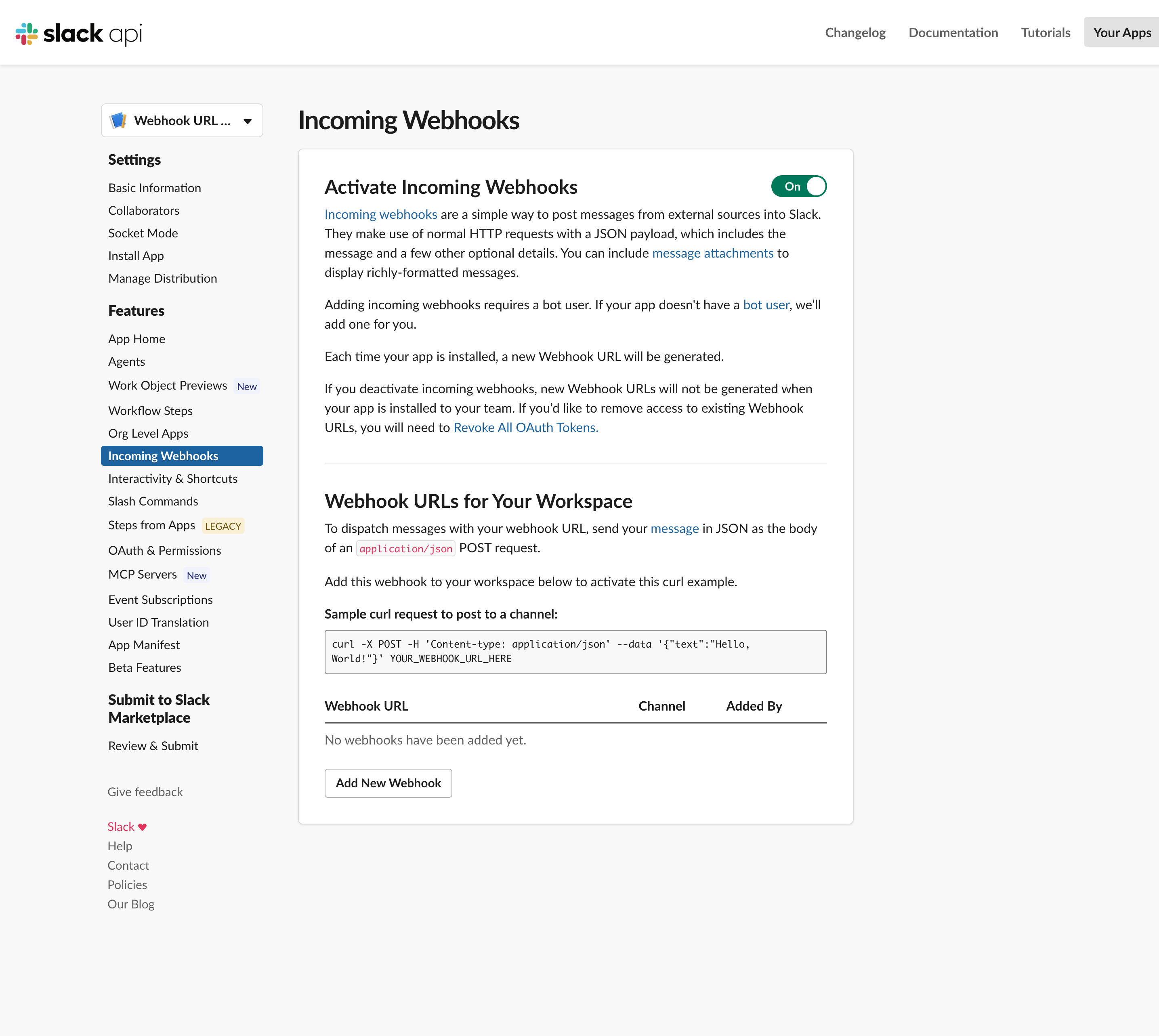
- Enable Incoming Webhooks. In the app's left sidebar, open Features → Incoming Webhooks and toggle Activate Incoming Webhooks to On.
- Add a webhook to the workspace. Scroll down and click Add New Webhook to Workspace. Choose the channel the webhook should post to and click Allow.
- Copy the URL. Slack drops you back on the Incoming Webhooks page with your new URL listed under Webhook URLs for Your Workspace. Copy it.
That URL posts to exactly the channel you chose. Need another channel? Repeat step 3 to add a second webhook and you'll get a second URL.
Send a test message
Post any JSON with a text field:
curl -X POST -H 'Content-type: application/json' \
  --data '{"text":"Hello from an incoming webhook :wave:"}' \
  https://hooks.slack.com/services/T00000000/B00000000/XXXXXXXXXXXX
For richer messages — buttons, sections, fields — send blocks built with Slack's Block Kit instead of plain text.
Alternative: Workflow Builder (no app)
If you'd rather not create an app, Slack's Workflow Builder can generate a webhook trigger: create a workflow, choose From a webhook as the trigger, and Workflow Builder gives you a URL plus a step to post a message. It's handy for no-code posting, though it's less flexible than an app-based incoming webhook and depends on your Slack plan. Verify availability for your workspace.
Sending any event to Slack
An incoming webhook is only half the story — you still need something to POST to it in the right shape. That's where Webhook Relay fits: point a provider (Stripe, GitHub, a monitoring alert) at Webhook Relay, transform the payload into a Slack message, and forward it to your Slack URL — optionally fanning out to other destinations too.
- Send a webhook to Slack — the full forward-and-transform walkthrough.
- Slack webhook tester — inspect exactly what you're sending.
- Receive Slack events locally — for the other direction (Slack → your app).
Security notes
- The URL is a secret. Anyone with it can post to your channel.
- To revoke a webhook, delete it from the app's Incoming Webhooks page (or remove the app) and create a new one.
- Incoming webhooks can only post to the chosen channel — they can't read messages or act as a user.
Ready to route real events into Slack? Test a webhook now or start forwarding for free.